
Device Emulator
Preview and test your funscripts with the ScriptCompiler Device Emulator, featuring physics-based device simulation and real-time playback.
On this page
Overview
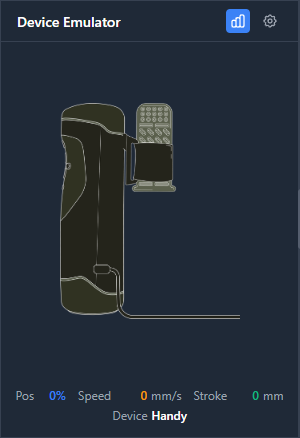
The Device Emulator shows a visual simulation of how your script will perform on a physical device. It uses physics-based calculations to accurately represent device behavior, including acceleration and velocity limits.
Use the emulator to preview your scripts without needing actual hardware.
Execution Modes
The execution mode selector in the timeline header controls how your script is executed during playback. There are four modes:
| Mode | Behavior |
|---|---|
| Off | No script execution. Playback runs without sending commands to any device or emulator. |
| Emulator | Execute on the Device Emulator only. The emulator panel appears and simulates device movement. |
| Device | Execute on a connected device only. Requires a device to be paired and connected. |
| Both | Execute on both the emulator and the connected device simultaneously. Useful for comparing simulated and real behavior. |
Your selected execution mode is saved and restored between sessions. Modes that require a device or emulator are disabled when those are not available.
Opening the Emulator
The Device Emulator is accessed from the Tools Panel or the left side of the editor:
- Click the Device Emulator button in the Tools Panel
- The emulator appears in the main content area
- Start playback to see the simulation
Device Profiles
The emulator includes profiles for different devices:
| Device | Stroke | Top speed | Script speed |
|---|---|---|---|
| Handy | 96 mm | 384 mm/s | 400 units per second |
| Handy 2 | 125 mm | 400 mm/s | 320 units per second |
| Handy 2 Pro | 125 mm | 450 mm/s | 360 units per second |
| Kiiroo KEON | 75 mm | 263 mm/s | 350 units per second |
| Kiiroo KEON 2 | 95 mm | 684 mm/s | 720 units per second |
| Autoblow AI Ultra | 150 mm | 600 mm/s | 400 units per second |
| VacuGlide 2 | No physics. It works by suction, so the sleeve squeezes in with the script. | ||
Pick the profile of your device in the emulator settings. The script speed is the same number the Speed Limiter uses, so a script that plays right in the emulator plays right on the device. The Handy 2 has the same motor speed as the Handy, but its stroke is longer, so a full stroke takes more time. Autoblow does not publish the stroke length of the AI Ultra, so the emulator uses 150 mm, the stroke of the Autoblow 2+ XT.
OSR / SR6 (Multi-Axis)
The OSR / SR6 profile previews multi-axis scripts in a 3D view, playing the positional axes (stroke, surge, sway, twist, roll, and pitch) together. The other profiles preview the stroke axis only. Hiding an axis in the timeline's Axes panel mutes it on the emulator, so you can preview one axis at a time without removing the others. See Multi-Axis Scripts for details.
Physics Simulation
The emulator simulates real device physics:
- Acceleration limits - Devices cannot instantly change direction; they must accelerate and decelerate
- Velocity limits - Maximum speed the device can achieve
- Position interpolation - Smooth movement between points
Understanding the Display
The emulator visual shows:
- Position indicator - Current simulated position (0-100)
- Motion bar - Visual representation of the stroker position
- Velocity display - Current speed in mm/s
Tips
Compare with Physics On/Off
Toggle physics to see the difference between your intended script and what the device can actually achieve. Large differences indicate sections that may not play back accurately.
Watch for Red in Overview
Red sections in the Script Overview often correlate with movements the emulator struggles to follow. Use both tools together.
Test at Different Speeds
Play at different speeds to see how the physics simulation responds. Slower playback may reveal issues not visible at normal speed.